
Management Window - Personnel Tab
Use this tab to view staff, or add new staff names to a location.
You can search for personnel only when Adding New personnel.
You are able to search across all locations.
Location Allocation
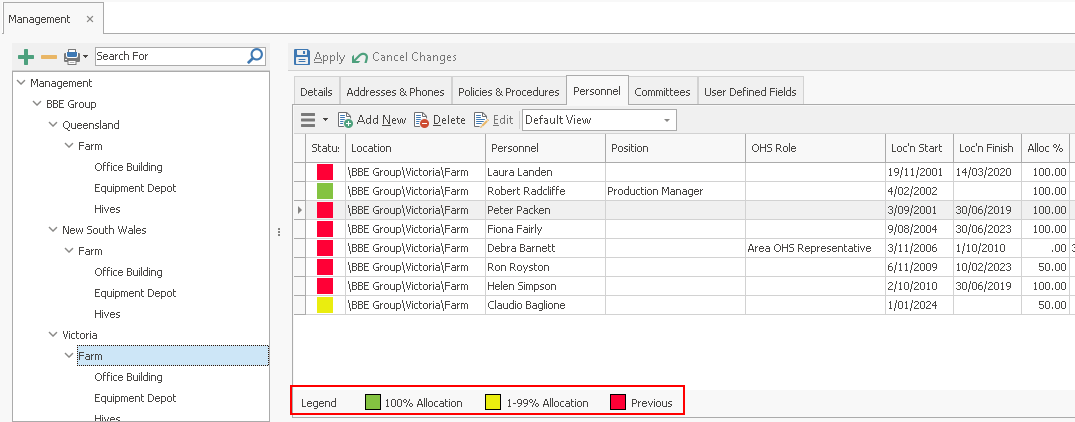
The Personnel tab also displays a Location Allocation percentage.
This is set when the Personnel details are added.
It refers to the percentage of time that this person spends at this particular site, in a paid or voluntary capacity.
For example, one beekeeper is at this location for 2.50 days a week (50% allocation with Yellow Status) and another is there for 5 days (100% allocation with Green Status).
Debra Barnett shows as a previous incumbent at this location with Red Ststus.
Add New Personnel
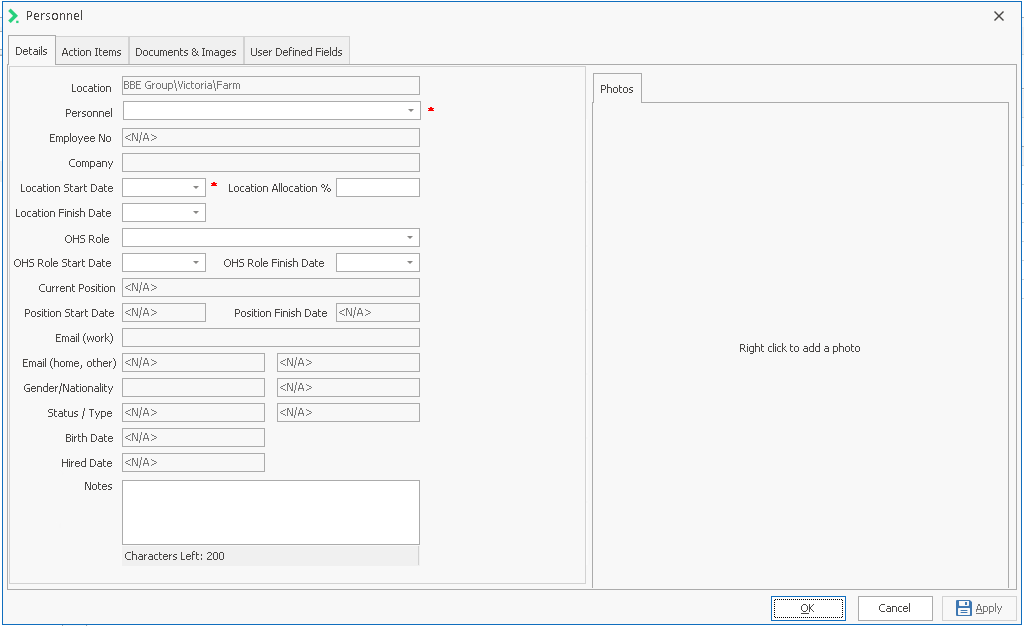
- Click Add New. This will open the Personnel window.
In the first tab, Details, the Personnel and Location Start Date fields are mandatory.
- Click the drop-down arrow next to Personnel, and search for the name of the person you want to add to this Location.
- Double click the required name – their relevant information will appear on the Details tab.
- Add the appropriate Location Allocation % value.
- Type in the Location Start Date as this is a mandatory field.
- Select an existing OHS Role, or create a new one, if this is relevant.
If an OHS Role is specified, you must also complete the OHS Role Start Date. - Complete the remaining fields as required.
- Click OK to save the changes and close the Personnel window.

Note that this is a complete list which includes people who are not employees; this is for use in Committees, which is the next tab in Management.